HTML
HyperText Markup Language is the backbone of the web. It defines the structure and content of your web pages. Without it, the web wouldn't exist.
What is HTML



Web Page vs Website
A Web Page is a single document (like this one). A Website is a collection of many pages linked together.
Structure & Skeleton
Think of HTML as the Chassis of a car or the Skeleton of a person. It's the rigid frame that everything else attaches to.
Pro Tip: Don't Overthink It
As mentioned in the video, a shallow understanding of HTML is often enough to start. Prioritize learning why it's used before memorizing every single tag.
Syntax and HTML Tags
<p>Hello</p>
<img src="/logo.png" alt="akademyas logo" />
<a href="/roadmap/html">Go</a>
Self-Closing Tags
Some tags don't need a closing pair because they don't hold content.
Examples: <br> for line breaks and <img> for images.
The Box Analogy
Think of <div> tags as boxes. You can put smaller
boxes (elements) inside bigger ones. This is called Nesting.
VS Code Trick
When you click on an opening tag in VS Code, it will automatically highlight the matching closing tag. This is a lifesaver when dealing with heavily nested code!
Anatomy of a Tag
Every HTML element follows a specific "grammar". Let's break down a standard paragraph tag.
The "Yes/No" Attributes
Some attributes don't need a value. Just having the attribute name present means "True".
Writing Clean HTML
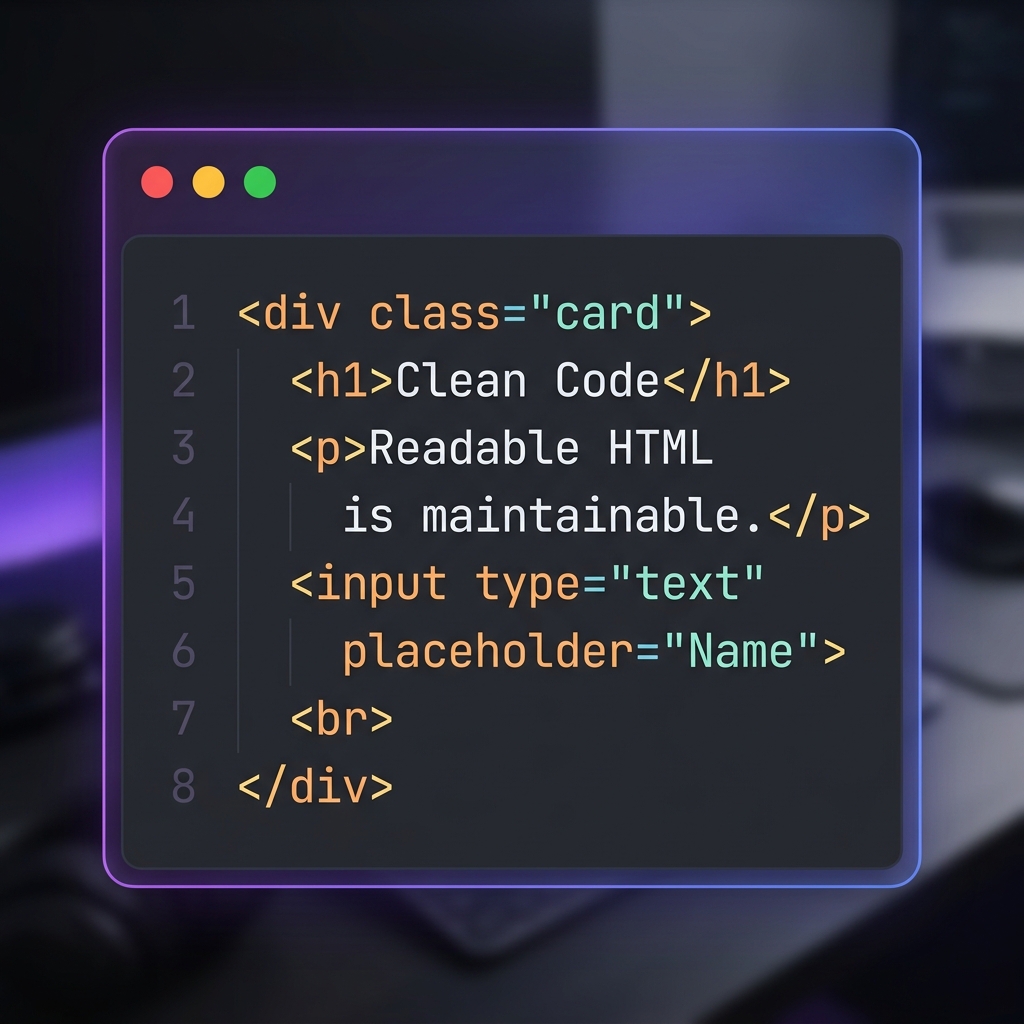
- Nesting HierarchyAlways close tags in the reverse order they were opened.
- Quote AttributesWhile not always required, wrapping values in quotes is best practice.
- Void ElementsElements like <img>, <input>, and <br> never take a closing tag.
HTML Structure
A good baseline structure helps browsers, SEO, accessibility tools, and your own future self.
<!doctype html>
<html lang="en">
<head>
  <meta charset="utf-8" />
  <meta name="viewport" content="width=device-width, initial-scale=1" />
  <title>My Page</title>
</head>
<body>
  <header>...</header>
  <main>...</main>
  <footer>...</footer>
</body>
</html>
- Has
langattribute - Has
viewportmeta - Only one
h1per page (usually) - Main content inside
main
The DOM Tree
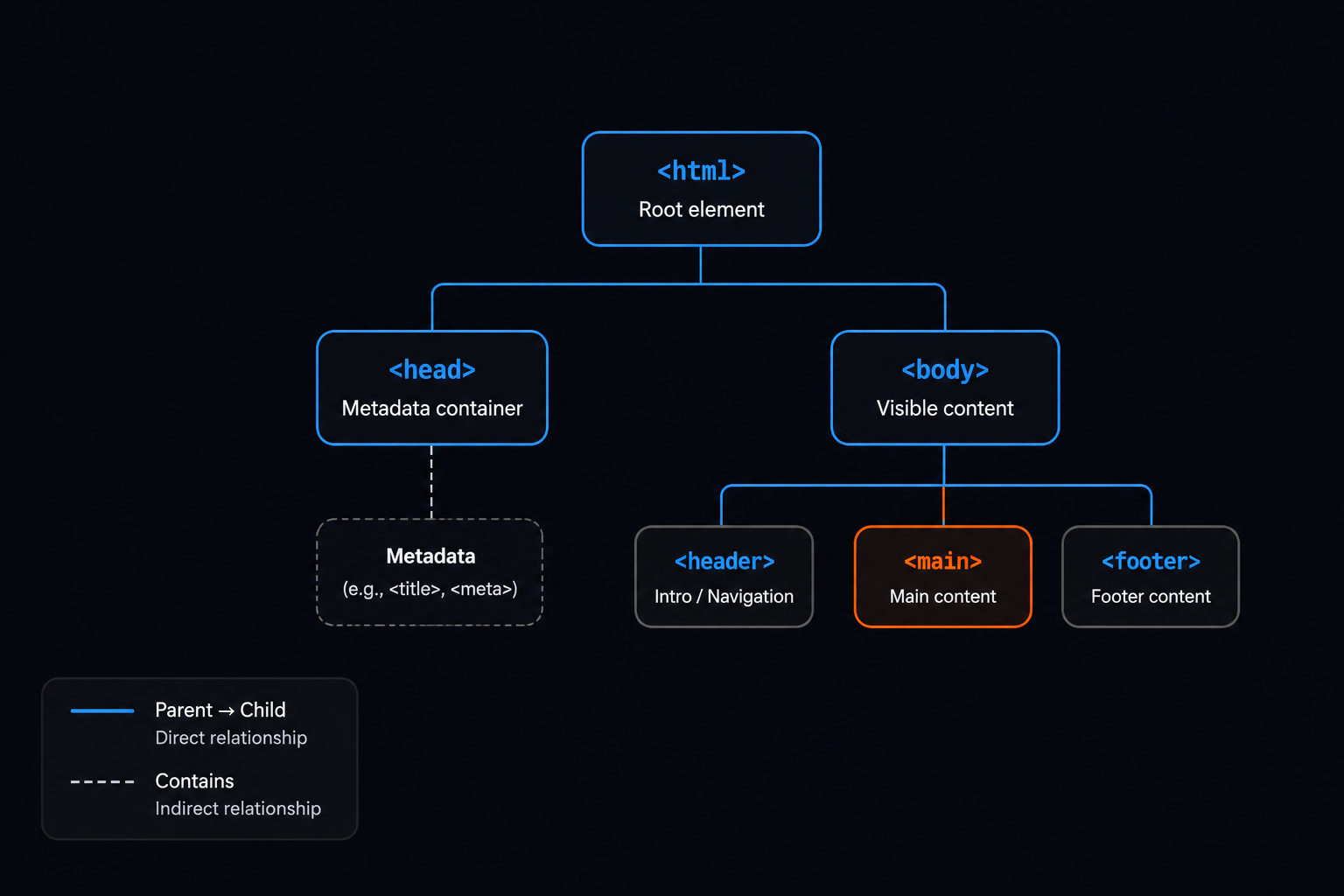
Browsers see your HTML as a "Family Tree" of elements. Nesting determines which elements are "parents" or "children".
Visual: How the Page Is Read
Browsers parse HTML top-to-bottom to build the DOM tree. A clean structure makes everything easier: styling, scripting, SEO, and accessibility.
HTML Properties and Attributes
Attributes live in HTML. Properties live on DOM objects in JavaScript. They’re related, but not the same.
<input id="email" type="email" value="" />
const el = document.querySelector('#email')
el.value = 'test@example.com'
el.setAttribute('value', '...')
Attribute Impact
How do attributes change an element? Toggle them to see the browser's perspective.
Common Elements, Tags, and Properties
Learn the small set of tags you’ll use every day, then expand as needed.
Choose the Right Tag
HTML is like a toolbox. You need to pick the right tool for the job. Which tag fits the scenario below?
Semantic HTML
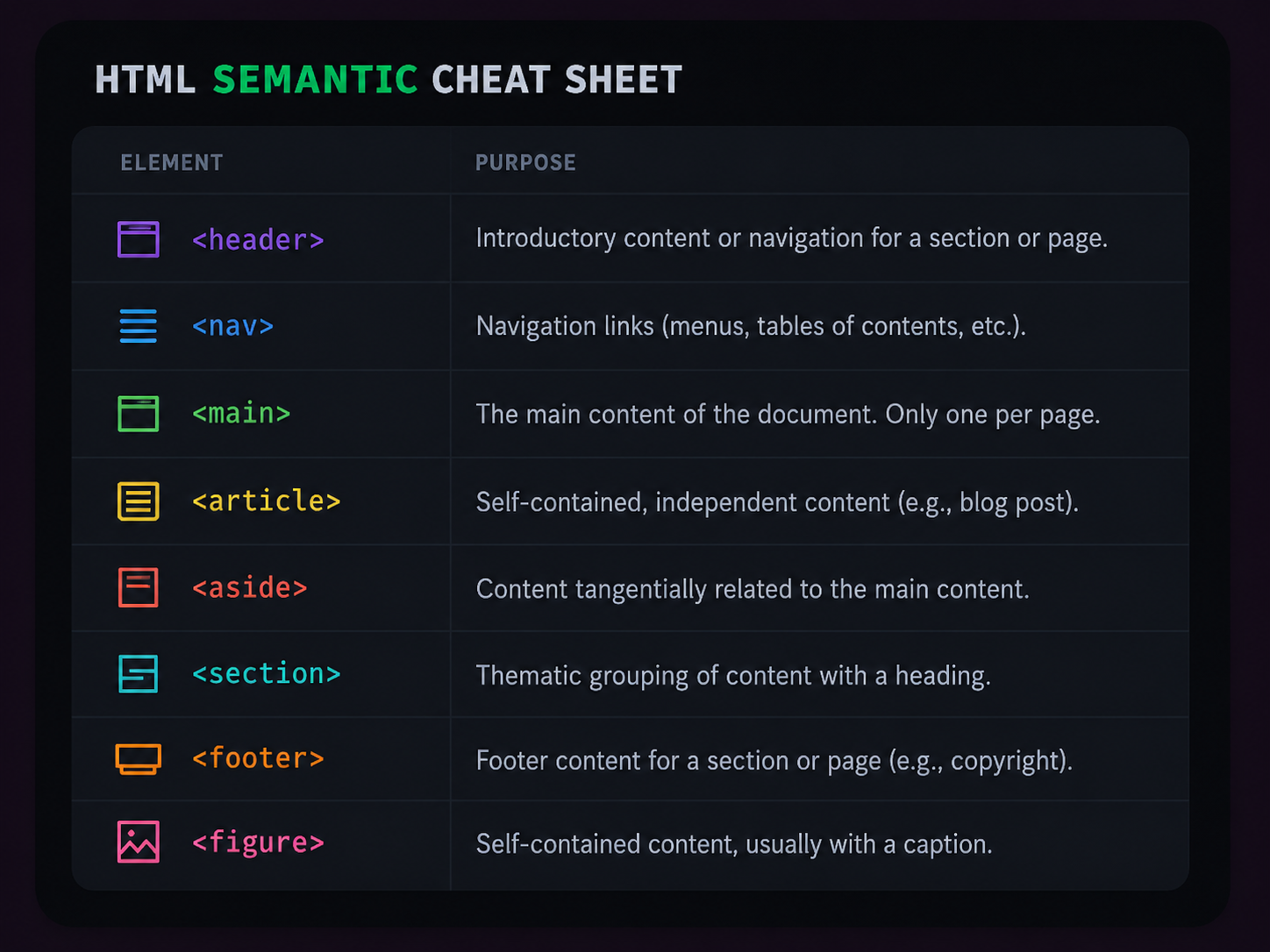
Writing semantic HTML means using tags that describe their meaning (like <article>, <nav>, <footer>) instead of just their appearance (<div>).
Semantic HTML improves accessibility and makes your intent obvious.
<div class="header">...</div>
<div class="content">...</div>
<div class="footer">...</div>
<header>...</header>
<main>...</main>
<footer>...</footer>
What the Browser Sees
Semantic tags aren't just for you; they're for search engines and screen readers.
<div class="nav">...</div>
</div>
<div class="main">...</div>
<nav>...</nav>
</header>
<main>...</main>
Inputs and Forms
Inputs are powerful. Use the correct type so the browser can help users (mobile keyboards, validation, autocomplete).
<label for="email">Email</label>
<input id="email" name="email" type="email" autocomplete="email" required />
<label for="dob">Birthday</label>
<input id="dob" type="date" />
Designing Frictionless Forms
Designing production-ready forms means minimizing user friction. Use proper input types, native autocomplete properties, and intuitive focus states to keep completion rates high.

The Virtual Keyboard
The type attribute doesn't just validate data; it tells
mobile browsers which keyboard to show.
Linking Files
HTML is the skeleton of your web page, but it needs CSS for styling and JavaScript for interactivity. Here is how you connect them all together.
Maintainability Matters
While you can technically write CSS and JavaScript directly inside your HTML file, it quickly becomes unmaintainable. The industry best practice is to separate your concerns by creating dedicated style.css and script.js files, and linking them to your HTML.
Syntax Differences
Pay close attention to the syntax. CSS uses the <link> tag and points to the file using href. JavaScript uses the <script> tag, points to the file using src, and explicitly requires a closing tag.
<link rel="stylesheet" href="style.css" />
<script src="script.js"></script>
The "Imaginary Space"
Think of the <script> tag as creating an invisible portal. When the browser reads your HTML and encounters the linked script, it essentially drops all the code from your external JavaScript file directly into that "imaginary space" inside the HTML document.
Mini Projects
Build these without any framework first.
- A personal profile page: headings, sections, lists, links, images, contact card.
- An article page: article, time, figure/figcaption, table of contents links.
- A checkout form UI: proper labels, validation attributes, fieldset groups, button types.
Comments
Comments are notes left directly in the source code. They are completely ignored by the browser and are meant solely to help you and other developers understand the code.
The Invisible Code
The compiler ignores anything written inside a comment block. You can use them to leave messages for other developers (e.g., "please add a function here") or to temporarily hide broken code without deleting it.
Syntax Across Languages
Every programming language has comments, but the syntax differs. HTML has arguably the longest syntax of them all.
Pro Tip: The Magic Toggle
Never type out the comment syntax manually. In VS Code, place your cursor on any line and press
Cmd + /(Mac) orCtrl + /(Windows). It will automatically toggle the correct comment syntax for whatever language you are currently writing.comments are
green
For example, if you place a `<button>` tag inside a comment block, what happens?